14. Inspect and interact with a browser
When an agent builds a research website or a report to read in a browser, it needs to inspect what readers will see and use. A page can contain valid code and still have an unreadable figure, a broken filter, or navigation that disappears on a narrow screen. Browser access lets the agent open the page, try its controls, and use what it finds to improve the work.
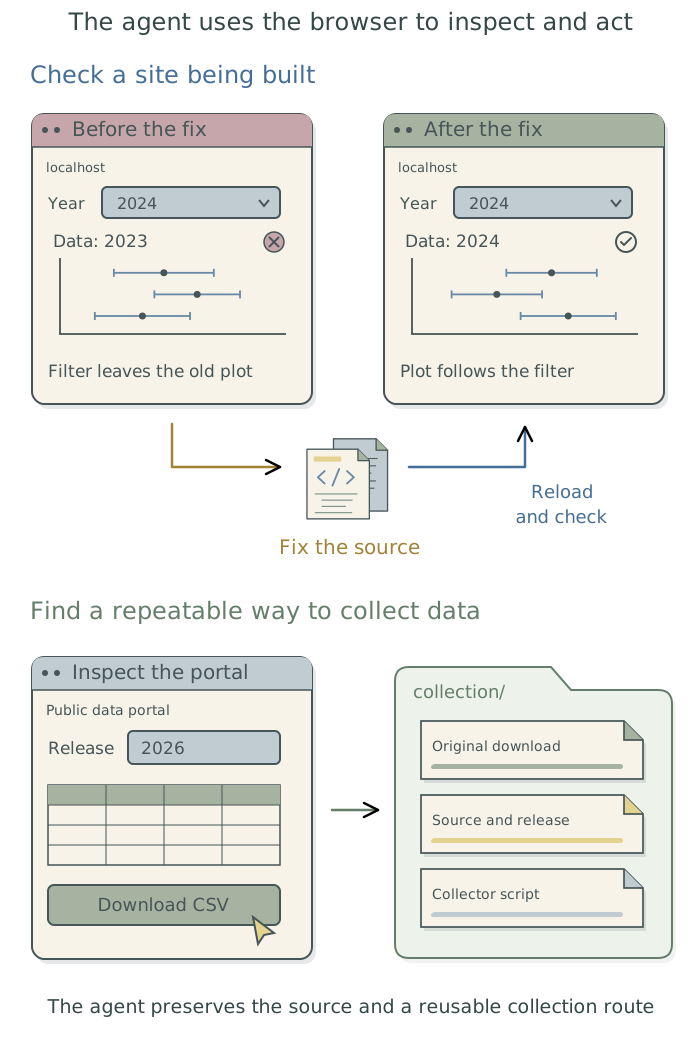
Suppose a results page plots population counts by region and lets readers choose a year. Selecting 2024 changes the selection shown, but the plot still displays 2023 results. The agent can investigate using the browser tools already available in its app. Another option is Playwright, a tool that automates browser actions. After correcting the website code, the agent can reload the page and check that the plotted values and labels match the selected year.
Set up browser access and choose the account
Ask the agent to check which browser tools it can use in the current session and configure another only if needed. Playwright MCP is one option: it makes browser operations available through the Model Context Protocol (MCP), a standard way for an agent application to discover and use tools.1 Chapter 13: Connect to research data and services: MCP explains how to choose and configure a connection.
A browser profile is a separate set of browser settings and saved login information. Where the integration supports it, have the agent use a separate profile for the task so it does not inherit your everyday signed-in accounts. If the task needs an account, identify which one and complete any personal sign-in yourself. The agent should explain the access it needs before using it.
A page’s contents may be sent to a hosted large language model (LLM), which runs on the service provider’s computers. Decide which material may be sent using Chapter 3: Know where your data goes in Doing Research with AI Agents. Have the agent configure the relevant controls from Chapter 2: Control what added tools can access; a separate browser profile does not itself restrict every website or action. Submitting information or changing an online record should follow your authorization for the task.
Inspect a research website
For a site under development, have the agent start a local preview: the website running on your computer for inspection in a browser. It should confirm that its browser can reach the preview. The site need not be published online for this check.
In the year-selection example, ask the agent to choose 2024, compare the displayed values and labels with the saved 2024 results, and then switch back to 2023. A screenshot can reveal clipped labels or overlapping elements; using the selector reveals whether it changes the plot. Have the agent fix any problems and repeat the affected checks after reloading the page.
Start this project’s local website preview and open it using the available browser tools. On the results page, select 2024 and confirm that the plotted values and labels match the saved results for that year. Switch back to 2023 and check again. Try the main navigation and inspect the pages at desktop and narrow phone-sized browser widths. Fix problems and repeat the affected checks after reloading. Report the pages, actions, and widths checked, and show any remaining issue that needs my design decision. Save the preview and checking instructions in the project context files and reuse them after relevant website changes.
The agent should report what it actually checked, including any pages it could not inspect. These checks concern the website’s presentation and behavior; you still assess the research choices and interpretation behind its results.
Collect data through a website
Browser access can also help the agent find data on an unfamiliar website. Suppose you need population counts for every region of a country in 2024 from a public statistics portal. The agent can inspect the release information, check the year and geographic coverage, and locate a download. If a suitable export or API is already known, it can use that directly.2
Ask the agent to use a permitted collection method and confirm what the downloaded file contains. It should check the region identifiers, year, and population measure against the source documentation, compare representative values, and report missing or duplicate regions. A successful download alone does not establish that it contains the requested data.
Have the agent save the original download unchanged, together with its provenance: a record of where it came from and how it was obtained. For example, the file can go in data/raw/ within your project folder, with a source log identifying its address, release, retrieval date, and any selections or requests used. It should also retain earlier releases that support reported results.
If the collection will recur, have the agent turn what it learned into a saved script with explicit inputs and output locations. It may use a direct download, an API, or automated browser actions. The script should respect the service’s limits on the number and frequency of requests and report failures, including an unexpected change in the data format or coverage. The research guide’s acquisition guidance explains how to choose a repeatable method.
Obtain the 2024 population counts for every region from the public statistics portal I identified. Use a permitted API or export if available; inspect the website if needed to find the correct release. Confirm the year, geographic coverage, and population measure. Preserve the original download in
data/raw/and record the source address, release, date, and selections in a source log. Check representative values and missing or duplicate regions. Create a reusable collection script with the year as an input, explicit output locations, the service’s request limits, and clear failure reporting. If collection requires multiple requests, check a small retrieval before collecting the full set. Record the command and setup in the project context files and use that script for future updates.
Save the checks and collection instructions
For website work, have the agent save the checking instructions in the project context files.3 These should record how to start and open the preview, which pages and controls to check, and the expected behavior. A recurring check, such as changing the year and verifying the displayed results, can be saved as a browser test that the agent runs after relevant changes.
For data collection, have the agent record the source, collection command, inputs, and output locations in the project context files.4 The instructions should cover any personal sign-in, request limits, and what to do if collection fails. Have it record the browser or collection software and its version, with the configuration needed to run it again. Ask the agent to maintain these instructions and the source log as the collection changes; the research guide’s data-provenance section explains the retained records in more detail.
Footnotes
Playwright also provides a command-line tool that an agent can use to control a browser without an MCP connection.↩︎
API stands for application programming interface, a way for a program to request data or operations directly. An export supplies a downloadable file, such as CSV (comma-separated values), a plain-text table format. If access requires an API key, use Chapter 12: Keep credentials out of research files: 1Password and direnv to keep it separate from collection code and saved request records.↩︎
Project context files hold a project’s instructions and records for the agent to use across sessions. See Chapter 7: Give the agent context for your project in Doing Research with AI Agents.↩︎
Project context files hold a project’s instructions and records for the agent to use across sessions. See Chapter 7: Give the agent context for your project in Doing Research with AI Agents.↩︎