Appendix A. Tools for customizing your terminal
The terminal can serve as a workspace for directing an agent while keeping research tasks in view. For example, you can discuss the next task while monitoring a long analysis, with other projects organized in separate tabs. Customizing the layout and status information makes those activities easier to follow and return to. Several tools contribute to this setup, from the application displaying the window to the information shown before each command.
This appendix explains those components and recommends a primary tool and an alternative for each. Have the agent adapt the tools and settings already on your computer, adding what serves your work. Chapter 18: Use an agent from the terminal: Claude Code explains starting and using the agent; the additions here customize that working environment.
| Component | What it provides | Primary choice | An alternative |
|---|---|---|---|
| Terminal emulator | The application displaying terminal sessions, with fonts, colors, tabs and shortcuts. | iTerm2 |
Ghostty |
| Shell | The program interpreting commands and starting other programs. | zsh |
Bash |
| Shell framework / plugin manager | Tools for configuring the shell and loading extensions. | Oh My Zsh |
antidote |
| Prompt theme | The information and appearance of the shell’s prompt. | Powerlevel10k |
Oh My Posh |
| Multiplexer | Several terminal panes and tabs organized into named sessions. | Zellij |
tmux |
Terminal emulator: iTerm2
A terminal emulator is the application providing the terminal window. iTerm2 is the recommended choice on macOS: it supports tabs, split panes and searching previous output. A pane is a separate area of the window. Ask the agent to set a comfortable font size and contrasting text and background colors, and show you the shortcuts for opening a tab and moving between projects. It can save related appearance and startup settings in a profile.
Ghostty is an alternative for macOS or Linux, with settings maintained in a text file that the agent can edit. On Windows, use Windows Terminal to open Ubuntu as described in Chapter 18: Use an agent from the terminal: Claude Code. The remaining tools are configured inside that environment.
Shell: zsh
The shell interprets commands such as claude or just figures and starts the corresponding programs. zsh is the recommended shell for using the terminal and the default shell on macOS, so you may already be using it. Its command history and completion can reduce typing: for example, completion can fill in a long project-folder name. Have the agent check the existing shell and configure the intended one to start in new terminal sessions.
Bash is a useful alternative when it is already part of a working setup, particularly on a shared computer. Using zsh in the terminal does not mean every saved script must use it. The agent should preserve each script’s requirements. The Oh My Zsh, antidote and Powerlevel10k choices below are for zsh, so a Bash setup needs its own configuration.
Shell framework: Oh My Zsh
A shell framework organizes configuration and extensions called plugins. Oh My Zsh supplies plugins and a common way to load them. For example, its Git plugin adds short commands for common version-control operations. Ask the agent to configure the plugins useful to your work and explain any shortcuts it adds. It should preserve existing setup in .zshrc, the file zsh reads when starting a shell for entering commands.1
antidote is a lighter alternative focused on loading a selected list of plugins. It can load plugins from Oh My Zsh without enabling the whole framework. Have the agent use one consistent loading arrangement and check a newly opened shell for errors or unexpected delays.
Prompt theme: Powerlevel10k
The shell prompt marks where the shell is ready for a command. A prompt theme changes its appearance and the information it displays. Powerlevel10k can show the current folder, the active software environment, and whether the previous command failed.2 If the project uses Git, it can also show the branch, the named line of work in version history. These cues help distinguish projects that are open at the same time.
Have the agent configure the information you want and a font containing the chosen symbols. It should check the result in your terminal and explain the indicators. Oh My Posh is an alternative when you want a prompt that also works with other shells, including Bash, or prefer its theme configuration. Its online configurator lets you arrange prompt elements, customize their appearance, and preview the result in your browser.
Multiplexer: Zellij
A terminal multiplexer runs several terminal programs in panes and tabs within a named session. Zellij provides this arrangement with on-screen shortcut hints. Although terminal applications can also split windows, a multiplexer maintains its own session, which you can leave and return to. Ask the agent to prepare a named session for the projects and tools you want to keep together and save the arrangement of panes and tabs in a reusable layout file.
The example below places projects in separate terminal tabs. Within the selected tab, the agent has configured Zellij to display its conversation beside queue status and btop, a tool for viewing processor and memory use. Queue status shows which research jobs are waiting, running or finished; the resource monitor shows how heavily the computer is being used. You can keep the applications you normally use to view figures or edit your manuscript open alongside the terminal.
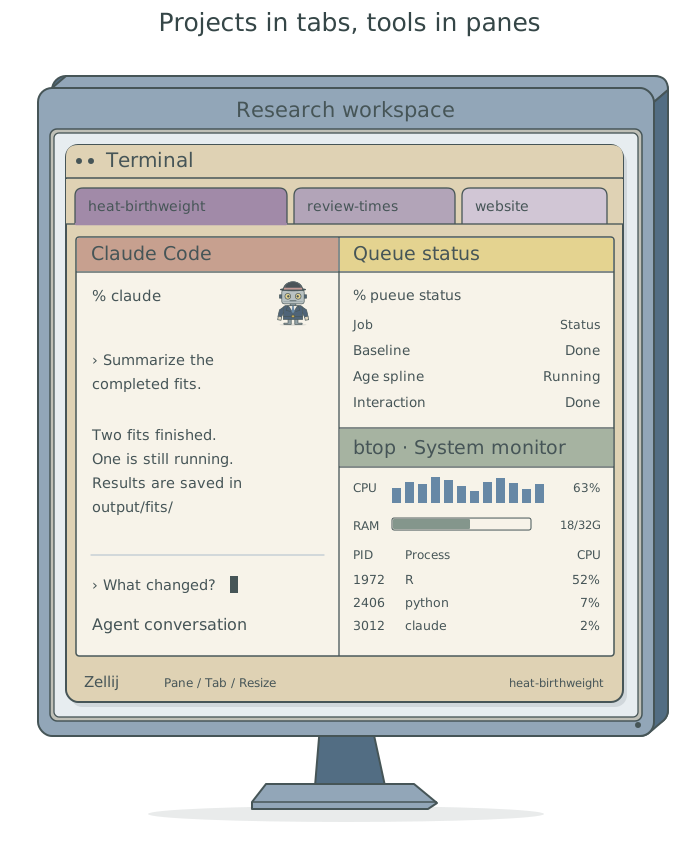
Detaching leaves the multiplexer session running while you stop viewing it; reattaching reconnects to that session. Have the agent show you both actions and check that you return to the intended project. This requires the computer and session to remain available. Reopening a saved layout after shutdown does not recover an unfinished calculation. Chapter 9: Keep unattended jobs moving: pueue explains how to manage submitted jobs and their records.
tmux is an alternative, especially when it is already configured on a computer you use remotely. It also supports panes and sessions that can be detached and reattached. The agent can configure either tool and explain the small set of controls needed for your layout.
Have the agent configure and check the setup
Start with the setup already in use. Ask the agent to identify what is installed and preserve the existing configuration before changing it. The example prompt below requests the primary macOS choices; adapt the applications and layout to your computer and preferences.
Inspect my current terminal setup and configure
iTerm2,zsh,Oh My Zsh,Powerlevel10kandZellij, installing only what is missing. Preserve my existing settings and project software setup. Use a clear terminal font, a comfortable text size, and good contrast between text and background. Configure a shell prompt showing the project folder and useful status. Prepare a named session with an agent pane, a view of my project’s job queue andbtopresource monitoring. Save this arrangement as aZellijlayout file and show me how to reopen it. Check that a new terminal starts the intended shell, displays the prompt correctly and can launchClaude Codein the project. Show me how to move between panes and detach from and return to the session. Record the configuration locations and how to reopen the setup in the global user instructions fileTOOLCHAIN.md.
After configuration, the agent should check the actual terminal you will use, including whether its shortcuts reach Zellij. It should report what changed and record the configuration locations and reopening instructions in the global user instructions file TOOLCHAIN.md.3 Appendix B: Maintain personal settings: chezmoi explains maintaining those settings for recovery or use on another computer.
Footnotes
Configuration filenames beginning with a dot are often called dotfiles.
~/.zshrcmeans the.zshrcfile in your home folder. The agent should maintain it; you do not need to edit it yourself. See thezshstartup-file documentation.↩︎The
Powerlevel10kREADME reports very limited support, no planned new features and that most bugs will remain unfixed. Keep this in mind when choosing it;Oh My Poshis an alternative.↩︎For the global user instructions file TOOLCHAIN.md, see Chapter 8: Apply your conventions across projects in Doing Research with AI Agents.↩︎