18. Use an agent from the terminal: Claude Code
A terminal provides another way to work with an agent: you type a research prompt and read its response in the same window where you can run project commands. This can be useful when you already work with scripts and job logs there, or connect to another computer to run an analysis. You can continue to give the agent instructions in ordinary language.
Suppose you need to regenerate a figure from saved statistical estimates. You can ask the agent to do this, have it identify the files it used, and then repeat the task through a saved command. This chapter follows that sequence using Claude Code. The project keeps its code and results whichever interface you use.
Open the project in a terminal
A terminal is the window that displays typed input and program output. A shell is the program that interprets commands and starts other programs. Its prompt is the text indicating that it is ready for a command; this differs from a research prompt addressed to an agent. On a Mac, open Terminal through Spotlight. For this guide’s Windows route, open Ubuntu in WSL2 through Windows Terminal. The examples use that Ubuntu shell, not a PowerShell tab.
The shell has a working directory: the folder from which it starts its work. Use cd followed by the project’s path to select that folder. The agent in the desktop app can supply the exact command. Replace the example path below with your project’s location, keeping the quotes if the path contains spaces:
cd "/Users/your-name/Research/my-project"Enter pwd to display the current directory and confirm that it is the intended project. Appendix E: Terminal vocabulary explains paths and related terms further.
Start a conversation with the agent
First, ask the agent in the app to check whether the claude command is available in the terminal you will use. This command starts the command-line interface, the version of Claude Code launched by typing a command. If it is missing, have the agent install it using the platform instructions and guide any sign-in you need to complete. Having the desktop app installed does not establish that this command is available.
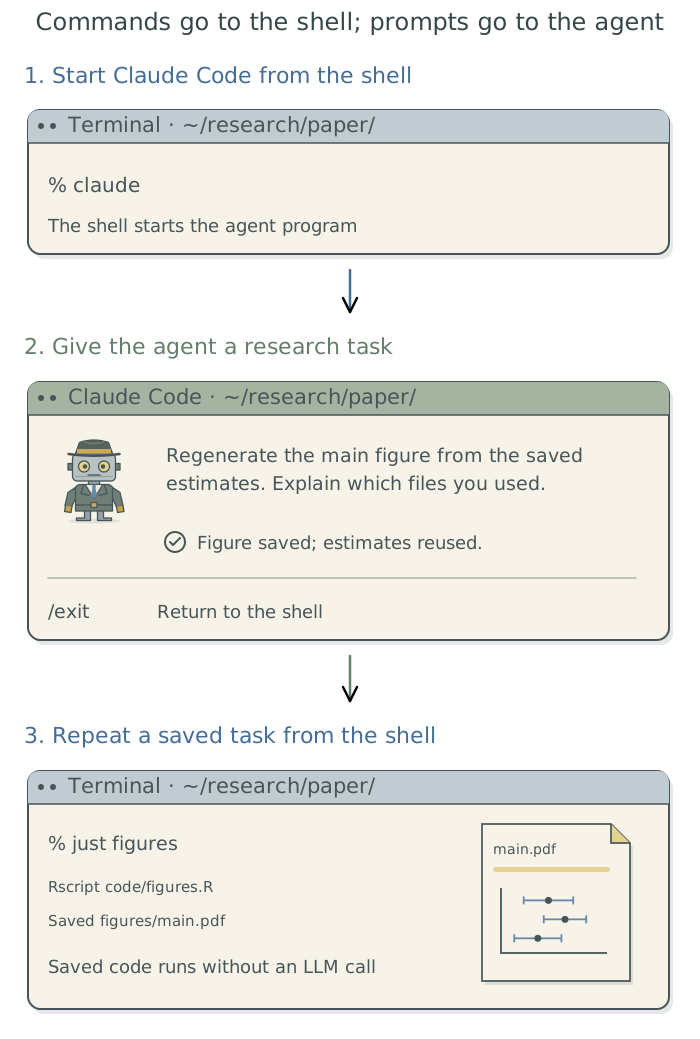
At the shell prompt in your project folder, enter:
claudeOnce Claude Code is running, type an instruction such as:
Regenerate the main figure from the saved estimates and explain which files you used.
Your input now goes to the agent. It can read the project context files1 and use its permitted tools to carry out the task. When you have finished the conversation, enter /exit to return to the shell prompt.
Starting in a project folder does not restrict every file the agent can reach; the access controls in Chapter 2: Control what added tools can access still apply. A hosted large language model (LLM) runs on the provider’s computers, so information supplied to it is sent there even when you use a local terminal.
Run a saved command
just gives project tasks short names. Each recipe contains the instructions for one task, saved in the project’s justfile. If the project has a figure recipe, enter these commands at the shell prompt to list the available recipes and regenerate the figure:
just --list
just figures
In this example, just figures runs the plotting code using saved estimates. It does not ask an LLM to recreate the analysis. Installing just does not create that recipe: ask the agent to prepare and check it if it is missing, following Chapter 7: Give research tasks reliable commands: just.2
Find session controls
While Claude Code is running, type / to see its available controls. These slash commands are instructions to the agent application, rather than commands for the shell. The command reference explains the controls supported by each version and account.
| Control | What it does |
|---|---|
/model, /effort |
Select an available LLM and its reasoning effort. |
/context |
Show how much of the session’s context capacity is in use. |
/compact |
Summarize conversation history to reduce the space it occupies. |
/usage |
Show account-usage information. |
/exit |
End the conversation and return to the shell. |
Use /usage or the app or account display to check the usage and reset information available for your plan. This concerns account consumption; /context concerns the information held within the current session.
Context is the information supplied to the LLM for its next response. Compaction replaces some conversation history with a summary, which can omit details.3 Before ending a session, have the agent record the current work and decisions in the maintained project context files.
Appendix A: Tools for customizing your terminal explains additional software for the terminal’s appearance, shell, prompts and panes. For unattended computation, use Chapter 9: Keep unattended jobs moving: pueue; for agent runs started from saved prompts, use Chapter 16: Run agents from saved prompts.
Footnotes
See Chapter 7: Give the agent context for your project in Doing Research with AI Agents.↩︎
If the shell reports “command not found,” have the agent check whether the program is installed and available in that shell. Chapter 3: Install and manage tools with Homebrew explains installation.↩︎
Chapter 5: Choose settings for the task explains account-usage limits, the context window and compaction.↩︎