5. Choose settings for the task
5. Choose settings for the task
The app lets you choose whether the agent should plan before acting, how actions receive approval, and which LLM and reasoning effort to use. These choices help you give difficult work enough attention while letting routine tasks proceed with fewer interruptions.
Changing a figure label usually needs a direct instruction. Investigating why two analyses produce conflicting estimates may need a plan and more reasoning. Both tasks use the access controls from Chapter 4: Control what the agent can do; changing a session setting does not replace those controls.
Decide whether to plan first
Use Plan mode when the task leaves important choices unresolved. Select it in Claude Code, describe the intended result and constraints, and ask for the proposed approach before implementation. The plan should identify the files involved, questions that need your judgment, and checks of the completed work.
Read it for analytical assumptions as well as proposed steps. Has the agent chosen the correct input file? Will it preserve the intended sample? Does it propose replacing your statistical model with a simpler one? Resolve these questions before authorizing implementation and switching to an execution mode. For difficult work, another agent can critique the plan; Chapter 7: Give the agent context for your project explains how to give that reviewer enough context.
When the goal and method are already clear, a direct instruction is usually enough. An agent can change specified labels and regenerate a figure without a separate planning round.
Choose how actions are approved
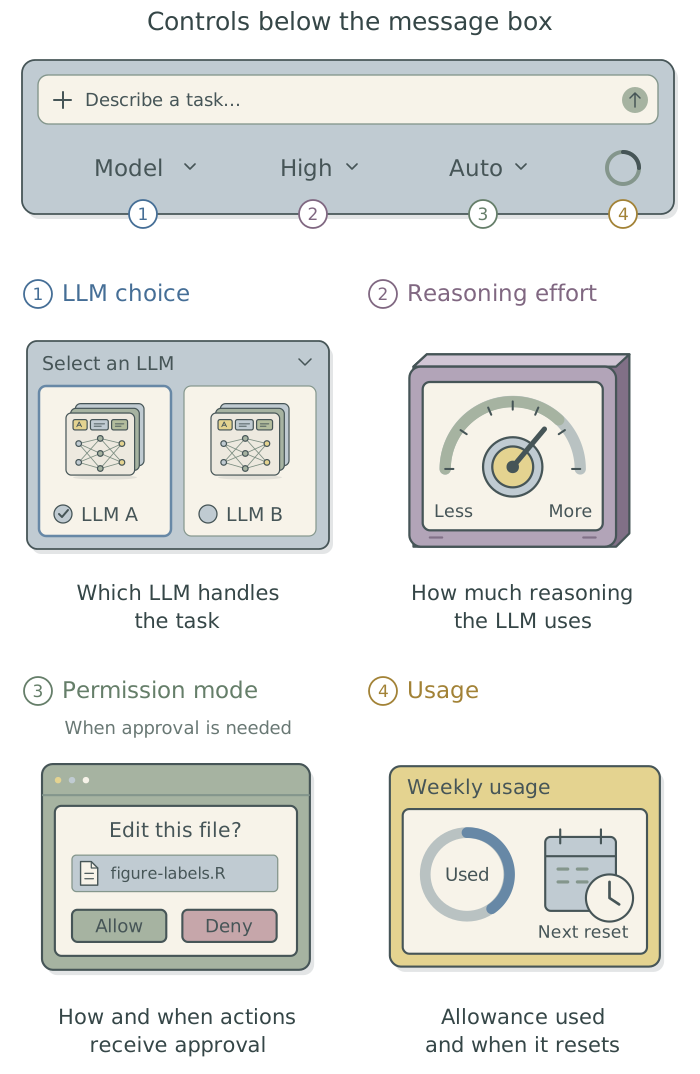
A permission mode determines which actions can proceed without asking you. Plan and the execution modes appear in the same selector below the message box. For ordinary work, use Auto after configuring access, then review the results. Keep publishing and changes to access settings subject to a separate decision.
| Mode | How it handles the work |
|---|---|
Plan |
Examines the project and proposes an approach before implementation. |
Auto |
Uses automatic checks to decide which actions may proceed. |
Accept edits |
Allows file edits and common file operations; other commands may need approval. |
Manual |
Usually asks before edits and commands, subject to existing permission rules. |
Available modes depend on your account and institutional settings. The permission-mode reference explains their current behavior. Auto retains permission checks; it does not grant unrestricted access. Bypass permissions removes most checks and is intended for separately isolated environments, rather than ordinary work on your computer.
Choose the LLM and reasoning effort
The app’s Model control selects the LLM. The effort control adjusts how much reasoning it uses. These are separate choices: you can use a capable LLM at lower effort for a well-specified task. Available LLMs and effort levels vary; the model reference describes the options.
Start consequential research work with a capable LLM and high effort, then reduce them for clearly specified, repetitive tasks. Diagnosing conflicting estimates may justify more reasoning than formatting figure labels. Higher effort can increase time and usage, however, and does not supply missing evidence or correct an unsuitable research specification. Check the result against the task regardless of the settings.
Understand usage and context limits
Reading context, reasoning, and generating responses consume LLM tokens, the pieces of text introduced in Chapter 1: How agents can help your research. Long inputs, extensive outputs, higher effort, and several agents working at once can use more of your allowance. The accounting depends on the LLM and your plan, so message count alone does not tell you how much remains.
Click the app’s usage circle to see usage and reset information. If your account has both session and weekly limits, resetting the shorter allowance does not reset the weekly one. Check these before starting substantial work, along with any charges for extra usage. Claude’s usage guidance explains the current arrangements.
Your usage allowance is separate from the context window, which limits how much information the LLM can work with at once. As a conversation grows, Claude Code automatically summarizes earlier material to make room for continued work, a process called compaction. The summary can omit details, including earlier instructions. Compaction does not reset your account’s usage allowance.1
Keep consequential decisions and the current state of the work in project context files that the agent can read again. This helps preserve an agreed sample definition or modeling choice when a conversation is compacted or a new session begins. Chapter 7: Give the agent context for your project explains which context files to maintain.
A saved analysis can run for hours without continuous LLM work. Repeated progress questions and large logs can still consume tokens. Have the agent run the saved computation, then check its completion and relevant outputs; Chapter 13: Build a modular analysis workflow explains how to manage longer jobs. The next chapter establishes the project files these tasks will use.
Footnotes
Anthropic’s context-window documentation explains automatic compaction and the information retained or reloaded afterward.↩︎