13. Build a modular analysis workflow
13. Build a modular analysis workflow
Research analyses change repeatedly. Separating the work into independently runnable steps lets an agent revise one part without rerunning everything. Saved inputs and outputs also make errors easier to locate.
In the heat-and-birthweight study (Chapter 10: The example research project), changing a figure label should redraw from saved contrasts. Changing an approved sample rule requires rebuilding the sample, refitting the statistical model, and updating contrasts, figures, and manuscript checks. A modular workflow makes that difference explicit.
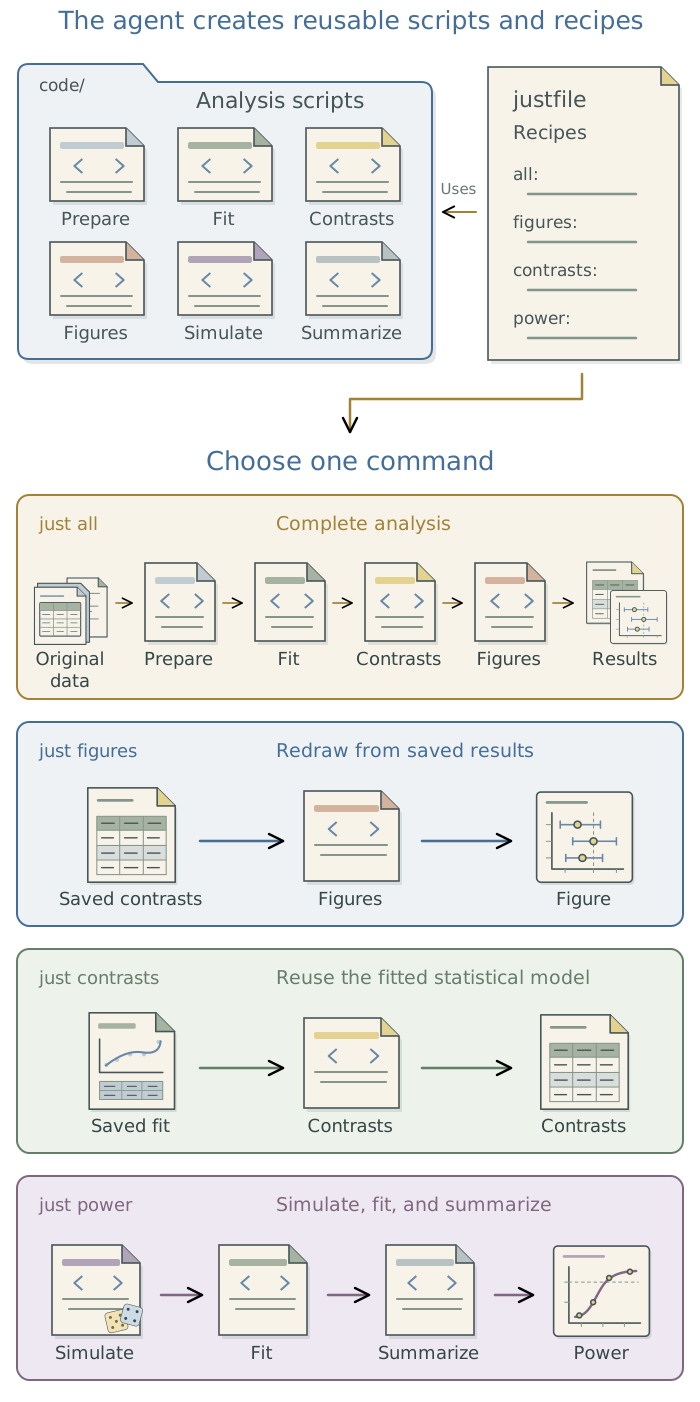
Make research steps independently runnable
Ask the agent to give each step explicit input files and saved outputs. Each step should run using those inputs, without depending on objects left in an interactive session.
| Step | Reads | Saves |
|---|---|---|
| Prepare the sample | Original records and agreed sample rules | Derived data, identifiers, and checks. |
| Fit the statistical model | Analysis file and specification | Fit, settings, and diagnostics. |
| Calculate contrasts | Fit and defined comparisons | Full-precision estimates and uncertainty. |
| Draw the figure | Saved contrasts and figure instructions | Plotting data and rendered figure. |
| Check the manuscript | Selected results and manuscript source | Comparison report and discrepancies. |
Related operations can share a script, and several analyses can reuse the same function. Have the agent organize the code so that each step can run separately, with the inputs it needs.
Build or revise the workflow
For a new analysis, ask the agent to read SPECIFICATION.md and propose how to divide the work into independently runnable steps. Its proposal should identify the files each step will read and save. Have it implement that structure, using shared functions for calculations needed in several places.
For an existing analysis, ask the agent to identify those steps within the current code. Before reorganizing it, have the agent run the existing analysis and save its code and results for comparison. It should then separate the steps and rerun them using the same inputs. Comparing the sample, estimates, and uncertainty intervals will help detect unintended changes introduced while reorganizing the code.
Read
SPECIFICATION.mdand propose independently runnable analysis steps, identifying the inputs and saved outputs for each. Implement the structure using shared functions where appropriate. If analysis code already exists, first run it and save its code and results for comparison. After reorganizing it, use the same inputs to compare sample membership, estimates, and uncertainty intervals. Investigate and report unexpected differences before proceeding.
Run the workflow with saved commands
Once the analysis has independently runnable steps, ask the agent to save commands for the tasks you expect to repeat. You should be able to request a figure, rerun an analysis, or rebuild the project without reconstructing the sequence of scripts each time.
just is a command runner: it lets you give names to commands used in a project. The agent writes these definitions, called recipes, in a plain-text file named justfile. A recipe can run one script or several commands in sequence. For example, the agent could create these recipes:
| Command | What the agent configures it to do |
|---|---|
just figures |
Regenerate figures from saved results. |
just contrasts |
Calculate the specified comparisons from saved statistical models. |
just power |
Run the project’s power analysis. |
just all |
Run the complete analysis workflow. |
As a workflow grows, keeping track of which steps need rerunning becomes harder. A figure depends on estimated contrasts, which depend on a fitted statistical model, which depends on the analysis data. These relationships are called dependencies. Changing the data can affect every subsequent step; changing a figure label usually affects only the figure.
A dependency-aware pipeline runner, such as targets for R, records these relationships and tracks changes to code and inputs. When asked to run the workflow, it determines which results need updating and reuses results that are still current. Have the agent configure those relationships as it builds the analysis.
You can use both tools together. The agent can define just all to start a targets pipeline. You or the agent then use the same convenient command, while targets determines which calculations actually need to run. If the project already has working commands or a pipeline, ask the agent to extend them.
The companion guide Extending Your Agent’s Toolkit covers setup in Chapter 7: Give research tasks reliable commands: just. Chapter 8: Rerun only affected steps: targets and Snakemake explains dependency-aware pipelines, including Snakemake as another option.
Check execution before scaling up
Individual scripts can run successfully while the complete workflow fails. For example, a model-fitting script might save its results in a format the figure script cannot read. Discovering that after many lengthy model fits wastes time.
Before starting a large run, ask the agent to perform a smoke test: a small but complete run through the workflow using the same code intended for the full analysis. In the heat-and-birthweight example, this means reading the birth records, fitting a statistical model, calculating the specified contrasts, and producing a figure. The agent should check that each step receives the inputs it expects and produces usable outputs. Have it fix implementation errors and repeat the test before running the full batch, meaning all the model fits or other runs planned.
Ask the agent to include automatic checks in the scripts themselves. These checks, often called assertions, should stop execution and explain the problem when a requirement is violated. For example, they can detect missing input files, duplicate birth identifiers, or unexpected changes in the number of records after joining datasets. The agent should derive these checks from SPECIFICATION.md and the data documentation.
Run a small, complete test of this workflow before starting the full batch. Check that every step receives the expected inputs and saves usable outputs. Add automatic checks based on
SPECIFICATION.mdand the data documentation. Fix implementation errors and repeat the test. Once it passes, run the full batch and report any failures.
Chapter 14: Test the analysis against known truth explains how simulated data with known answers can test the calculations and statistical performance.
Investigate results and revise the analysis
A modular workflow also helps when a result needs investigating. The agent can inspect saved estimates and predictions before deciding whether a statistical model needs refitting. If a revised analysis is warranted, it can rerun the affected steps while preserving the original results.
As a hypothetical example, suppose the estimated heat-related birthweight differences are much larger for the youngest mothers than for other ages. Ask the agent to check whether there are enough births at those ages across the exposure range, whether a few records have a large influence, and whether the code calculates the specified comparisons correctly.1 It should explain what it finds and which explanations need further investigation.
If that investigation suggests the statistical model represents the age-dependent heat relationship too simply, you might approve a more flexible relationship as a sensitivity analysis. Have the agent preserve the original fit and compare the estimated difference between 10 and 5 hot days at the same maternal ages. It should add the approved sensitivity analysis to SPECIFICATION.md, explain the decision in METHODOLOGY.md, and rerun the affected analysis and checks. If it instead finds code that fails to follow the existing specification, have it correct the code and record how it verified the repair.
Investigate the unexpected result identified below using
SPECIFICATION.md, the current code, and saved outputs. Examine possible explanations in the data, code, and statistical model, and report the evidence for each. Preserve the original analysis. Propose any justified sensitivity analysis for my decision. After approval, updateSPECIFICATION.md, record the decision and reason inMETHODOLOGY.md, and compare the original and revised results for the specified quantities.
Run jobs while you’re away
A project may require many independent model fits or simulation runs. A job is one such task, run by a command. Running them all at once can overwhelm your computer; starting each one manually leaves the tasks idle between jobs. Ask the agent to prepare the commands and submit them to a job queue.
pueue is a tool for creating and managing job queues on your computer. It starts waiting jobs automatically as running jobs finish. Once the jobs are submitted, pueue can keep them running after the agent conversation ends.
The queue’s slots determine how many jobs may run simultaneously. Eight slots allow eight running jobs; the rest wait. A processor core is a computing unit that can execute instructions independently of other cores. One job may use several cores, and each job also needs memory. Have the agent use a representative test run to choose how many jobs the computer can comfortably run together.
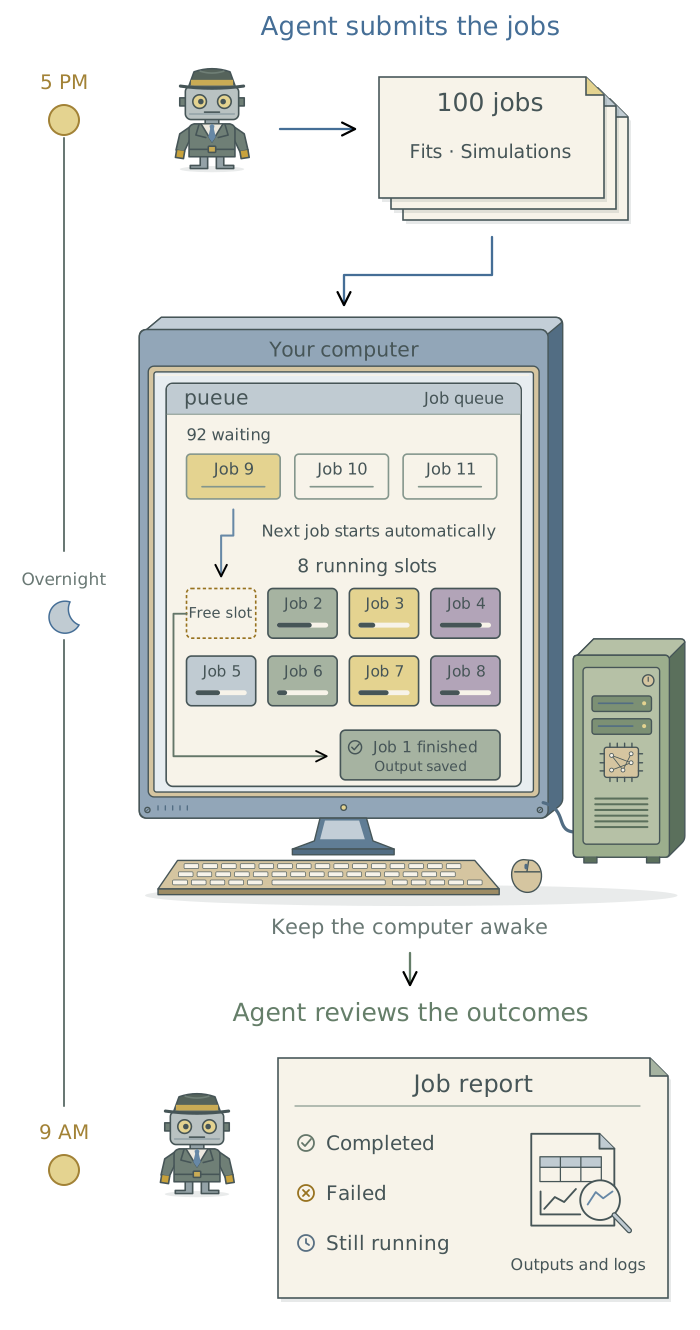
The computer must remain awake while the jobs run. When you return, ask the agent to report which jobs completed, which failed, and which are still waiting or running. It should check the saved outputs and investigate failures before retrying the affected jobs. The diagram illustrates when you might submit and review a batch; its completion time depends on the work.
For setup and recovery instructions, see Chapter 9: Keep unattended jobs moving: pueue in the companion toolkit. If the work exceeds your computer’s capacity, use an approved institutional computing service, such as Harvard FAS Research Computing.
Footnotes
The DSS analysis-review skill reviews code against scientific requirements; it does not run the analysis.↩︎