4. Control what the agent can do
4. Control what the agent can do
An agent can work more independently when it has permission to do routine work and clear restrictions on what it can access. You decide which files it may read or change and which services it may use. The agent can help configure those controls, following the data-use decisions from Chapter 3: Know where your data goes.
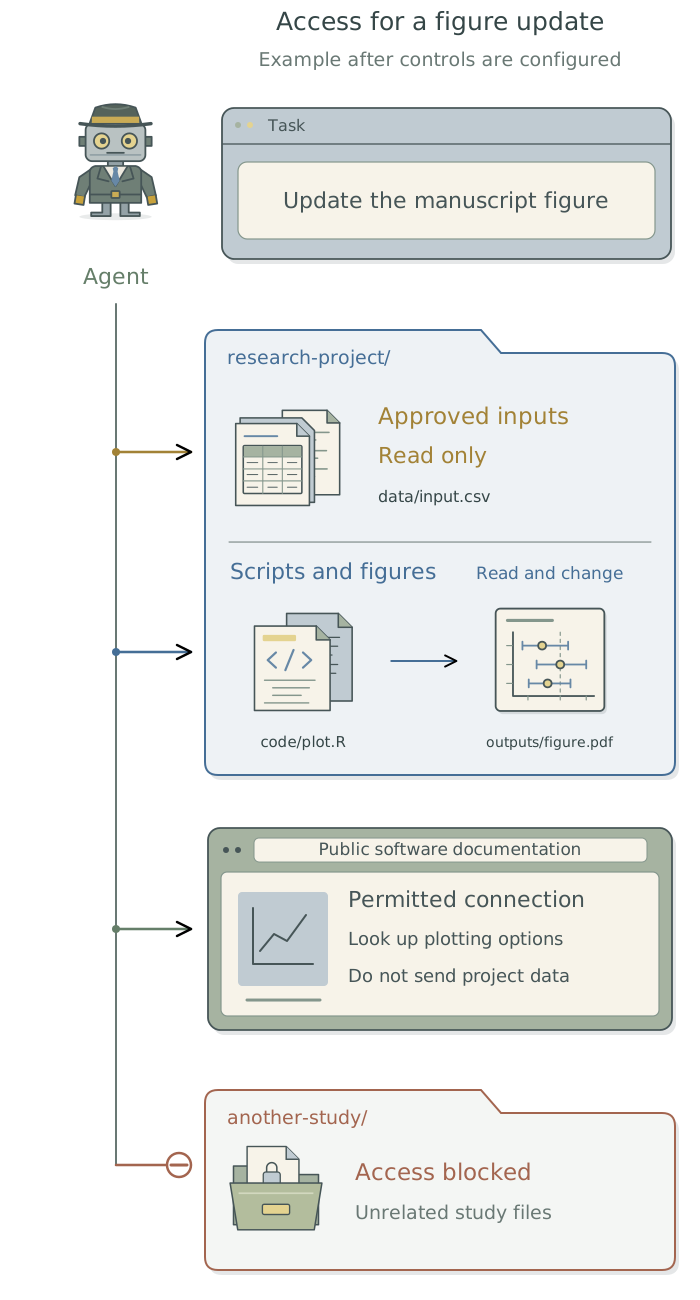
Suppose you ask it to update a manuscript figure. It needs to read the approved inputs, edit the plotting script, and save the revised figure. You can allow those actions while preventing changes to the original data and access to another study’s files.
Decide what the agent may access
Describe the access in terms of your actual files and tasks. For the figure update, you might specify:
| Resource | Permitted use |
|---|---|
| Approved input dataset | Read it to generate the figure; leave the original unchanged. |
| Plotting script and figure folder | Edit the script and save revised figures. |
| Research software | Run the plotting script with the installed analysis software. |
| Public software documentation | Look up plotting options if needed; do not send project data. |
| Another study’s files | No access. |
Include connected accounts and browser access in these decisions. A browser signed into a data service may expose records outside the project folder. Even a search query can send confidential information. Give access to a service only when the task needs it and the use is permitted.
Enforce those limits
Written instructions tell the agent how you want it to work. Telling it to leave the original data unchanged is useful, but does not prevent a program from overwriting them. Configure access restrictions as well; selecting a project folder does not, by itself, make other files inaccessible.
In Claude Code, permission rules1 tell the harness2 which tool actions to allow, ask you about, or deny. You can permit routine edits, require approval before publishing files, and deny changes to protected inputs. A sandbox3 adds restrictions enforced by the operating system4 on the commands running inside it, including programs those commands start. It can limit which files they read or change and which network destinations they contact.
Both are needed because a file-tool restriction may not block a script that reads the same file. Conversely, the sandbox does not cover Claude Code’s built-in file tools or separately connected tools. A queued job or a command run outside the sandbox may also have different access. Have the agent check the controls for the tools it will actually use; Chapter 2: Control what added tools can access in the companion guide Extending Your Agent’s Toolkit explains configuration.
Use global settings for rules you want across your projects. Use project settings for permissions tied to a particular study, such as which input folders must remain unchanged and which services the work requires. Ask the agent to inspect both before proposing changes.
| Scope | File | Applies to |
|---|---|---|
| Global | ~/.claude/settings.json5 |
Your work across projects on this computer. |
| Project | .claude/settings.json inside the project |
This project; the file can be shared with collaborators. |
| Personal project | .claude/settings.local.json inside the project |
Your own settings for this project. |
For many settings, your personal project file overrides the shared project file, which overrides your global defaults. Permission rules work differently: Claude Code combines the rules from these files, and a matching deny takes precedence over an allow. Allowing edits to a folder in your project settings therefore does not remove a global rule that prohibits those edits. Your institution may also impose restrictions through managed settings.6
Keep secrets out of saved permissions. Choosing Yes, and don't ask again can save a command in .claude/settings.local.json, including any password or API key written into it.7 Have the agent keep this file out of version control and shared archives, and supply credentials when commands run without writing their values into commands or output. If a credential has been exposed, revoke or replace it; deleting the file is not enough. The toolkit’s Chapter 12: Keep credentials out of research files: 1Password and direnv explains the setup.
When a separate environment helps
A container8 provides a separate software environment with selected files and tools. You might use one to run an unfamiliar replication package without exposing unrelated projects or credentials. You could also run an agent and an open-weight LLM inside a container, giving them only the study files and tools they need. That requires configuring the folders, credentials, and network connections available inside it; putting software in a container does not automatically keep its data there.
Containers can also preserve the software needed to reproduce an analysis. The toolkit’s Chapter 10: Run work in a separate environment: containers covers these uses and their setup. Any environment processing protected data still needs to meet the requirements established in Chapter 3: Know where your data goes.
Have the agent configure and check access
You can direct this setup from the app. Give the agent your permitted files and services, then ask:
Inspect the current settings and propose controls for the access I’ve described. Identify which settings files apply and where you propose to save each change. After I approve the changes, configure them and test permitted and blocked operations with harmless files. Check file tools, commands, and any connections this task uses. Report what worked, what failed, and anything you could not verify.
For example, the agent can check that an approved test file is readable, a protected test file cannot be changed, and an excluded test file cannot be read through either a file tool or a script. It should report the actual outcomes and leave failed restrictions in place for diagnosis, rather than bypassing them to complete the test. These checks can reveal mistakes; they do not establish protection for every possible action. If a required control is unavailable, ask your institution’s support team for an appropriate environment.
Keep the settings and a brief record of the checks with the project. Repeat relevant checks when you add tools or change access. If a task needs broader access, have the agent explain what it needs and why before changing the settings. Also keep a recoverable version of the files it may edit, as described in Chapter 6: Organize your research projects. Chapter 5: Choose settings for the task covers everyday settings once this access is established.
Footnotes
Rules that allow specified tool actions, require approval, or block them.
Claude Codeenforces these settings; instructions in a prompt do not change them. See Anthropic’s permission documentation.↩︎The software around the LLM that supplies context, checks permissions, runs permitted tools, and returns their results. See Anthropic’s explanation of how
Claude Codeworks.↩︎A restricted environment for running programs, with limits on which files and network destinations they can access. See Anthropic’s sandbox documentation for the controls and tools covered.↩︎
The core software that manages a computer’s hardware, files, and running programs. macOS, Windows, and Linux are examples. See IBM’s introduction to operating systems.↩︎
The tilde (
~) means your home folder. The other two paths start inside the project folder. See Anthropic’s settings reference.↩︎Anthropic’s settings precedence explains file priority; its permission documentation explains why a deny rule from one file takes precedence over an allow from another.↩︎
Apiiro’s November 2026 investigation documents secrets in saved approvals.
Claude Codenormally adds the local settings file to your globalGitignore list when it writes the file inside a repository, but this does not protect a fileGitalready tracks. Exclude.claude/settings.local.jsonin the project’s own.gitignoretoo; the shared.claude/settings.jsoncan remain under version control. See Anthropic’s settings documentation.↩︎A container runs a program and its supporting software in an isolated environment. Its configuration determines which files and connections it can access. See
Docker’s introduction to containers.↩︎