2. Get started with the app
2. Get started with the app
Claude’s desktop app lets you work with an agent through a conversation. You describe what you need, and the agent can use your project’s files and software to carry it out.
Suppose you need to change the labels on a figure. You can ask the agent to edit the plotting script and regenerate the figure, then open the result to check it. The app gives you a place to describe the change, follow the work, and intervene if the agent misunderstands.
Install and sign in
- Download and install the Mac app using the official
Claude Codedesktop instructions. - Sign in with the account you intend to use for research.
Harvard. Request a license through HUIT’s Claude page, using the form for your school or unit. Sign in with that account for your Harvard research.
Find your way around
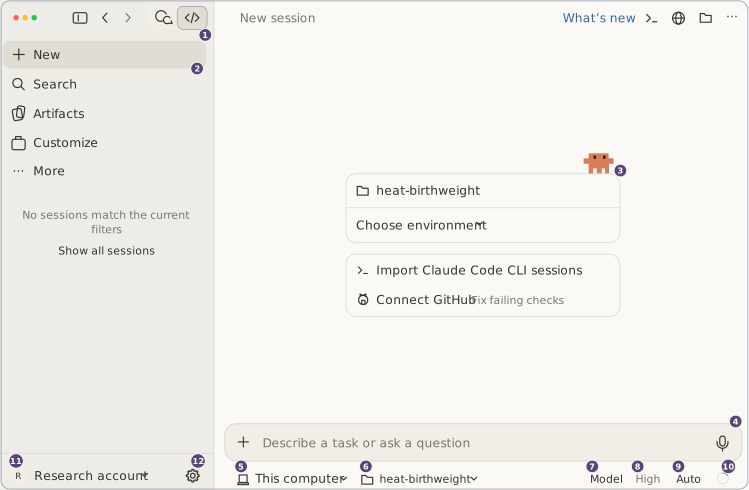
The app opens in the Claude tab, which handles general tasks using tools mainly in the cloud. For the work in this guide, use Code with This computer selected so Claude can edit project files and run analyses using the software installed on your computer. The LLM still runs on Anthropic’s servers. When the agent supplies project content to the LLM, it sends that information to Anthropic. Chapter 3: Know where your data goes explains what this means for your research data.
Each time you open the app, switch to Code using the </> button near the top of the sidebar. The illustration below shows the Code tab. Hover over a numbered control to read its explanation. On a touchscreen, tap the number; with a keyboard, use the Tab key. You can enlarge the illustration or read all the explanations below it.
Work with the agent
Describe what you want in the message box. As the agent works, the conversation shows its progress, questions, and requests for permission. You can add information or clarify your instructions there. When it finishes, open the result and decide whether it needs further work. For example, if the revised figure labels are crowded, ask the agent to shorten them and regenerate the figure.
If the agent misunderstands the task, you can stop it and explain what needs to change. Stopping does not undo changes it has already made. Before working with your research files, read Chapter 3: Know where your data goes, Chapter 4: Control what the agent can do, and Chapter 5: Choose settings for the task.